世界時間時區時差
English
Français
Deutsch
Español
日本語
繁體
简体
Português
Italiano
Русский
時間,時區,時差
Area
北美
安圭拉
安提瓜和巴布達
巴哈馬
巴巴多斯
伯利茲
百慕大
英屬維爾京群島
加拿大
開曼群島
哥斯達黎加
古巴
庫拉索
多米尼加
多米尼加共和國
薩爾瓦多
格林納達
瓜德羅普
關島
危地馬拉
洪都拉斯
牙買加
墨西哥
蒙特塞拉特
尼加拉瓜
北馬里亞納群島
巴拿馬
波多黎各
聖基茨和尼維斯
聖盧西亞
聖皮埃爾島和密克隆
聖文森特和格林納丁斯
特克斯和凱科斯群島
美國
美屬維爾京群島
南美洲
阿根廷
阿魯巴
玻利維亞
巴西
智利
哥倫比亞
厄瓜多爾
福克蘭群島
法屬圭亞那
圭亞那
巴拉圭
秘魯
烏拉圭
VenezuPela
委內瑞拉
歐洲
阿爾巴尼亞
安道爾
亞美尼亞
奧地利
白俄羅斯
比利時
波斯尼亞
保加利亞
克羅地亞
塞浦路斯
捷克
丹麥
愛沙尼亞
法羅群島
芬蘭
法國
德國
直布羅陀
希臘
匈牙利
冰島
愛爾蘭
意大利
科索沃
拉脫維亞
列支敦士登
立陶宛
盧森堡
馬其頓共和國
馬耳他
摩爾多瓦
摩納哥
黑山
荷蘭
挪威
波蘭
葡萄牙
羅馬尼亞
俄羅斯
聖馬力諾
塞爾維亞
斯洛伐克
斯洛文尼亞
西班牙
瑞典
瑞士
土耳其
英國
烏克蘭
梵蒂岡城國
澳大利亞太平洋
美國薩摩亞
澳大利亞
科科斯群島
庫克群島
斐濟
法屬波利尼西亞
基里巴斯
馬紹爾群島
密克羅尼西亞
瑙魯
新西蘭
紐埃
諾福克島
帕勞
巴布亞新幾內亞
皮特凱恩群島
所羅門群島
湯加
圖瓦盧
瓦努阿圖
瓦利斯群島和富圖納群島
亞洲
阿富汗
阿塞拜疆
巴林
孟加拉國
不丹
文
柬埔寨
中國
加沙地帶
格魯吉亞
香港
印度
印尼
伊朗
伊拉克
以色列
日本
約旦
哈薩克斯坦
科威特
吉爾吉斯斯坦
老撾
黎巴嫩
澳門
馬來西亞
蒙古
緬甸
尼泊爾
北韓國
阿曼
巴基斯坦
菲律賓
卡塔爾
沙特阿拉伯
新加坡
韓國
斯里蘭卡
敘利亞
台灣
塔吉克斯坦
泰國
東帝汶
土庫曼斯坦
阿拉伯聯合酋長國
烏茲別克斯坦
越南
西岸
也門
非洲
阿爾及利亞
安哥拉
貝寧
博茨瓦納
布基納法索
布隆迪
喀麥隆
佛得角
中非共和國
乍得
科摩羅
剛果
剛果民主共和國
科特迪瓦象牙海岸
吉布提
埃及
赤道幾內亞
厄立特里亞
埃塞俄比亞
加蓬
岡比亞
加納
肯尼亞
萊索托
利比里亞
利比亞
馬達加斯加
馬拉維
馬里
毛里塔尼亞
毛里求斯
馬約特島
摩洛哥
莫桑比克
納米比亞
尼日爾
尼日利亞
留尼汪島法語
盧旺達
聖赫勒拿島
聖多美和普林西比
塞內加爾
塞舌爾
塞拉利昂
索馬里
南非
蘇丹
斯威士蘭
坦桑尼亞
多哥
突尼斯
烏干達
西撒哈拉
贊比亞
津巴布韋
阿布賈 - Abuja 時間,時區,時差
標準時區:
UTC/GMT+1
日光節約時間:
無
當前時區:
UTC/GMT1
安裝免費時間插件工具!
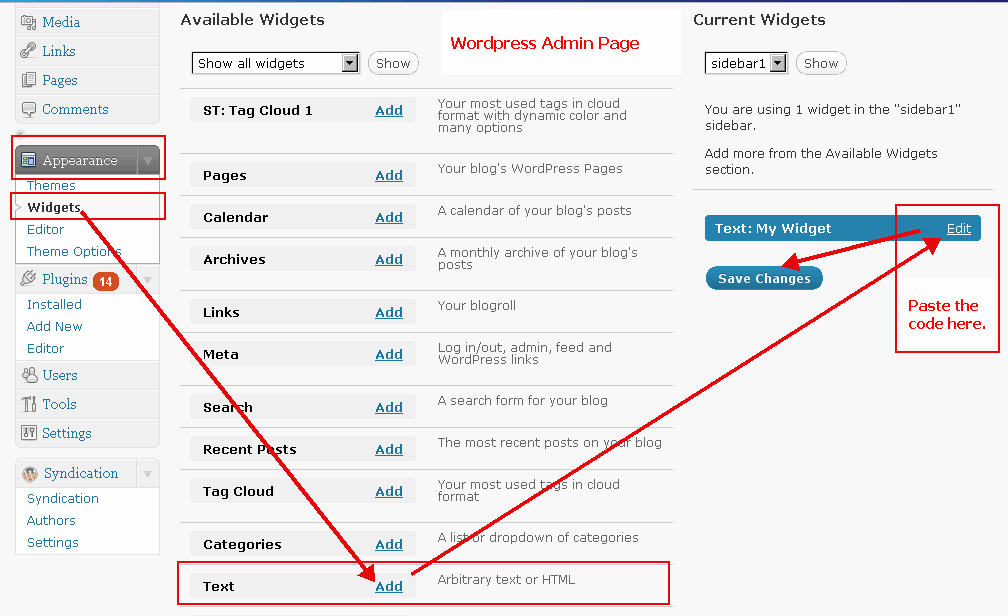
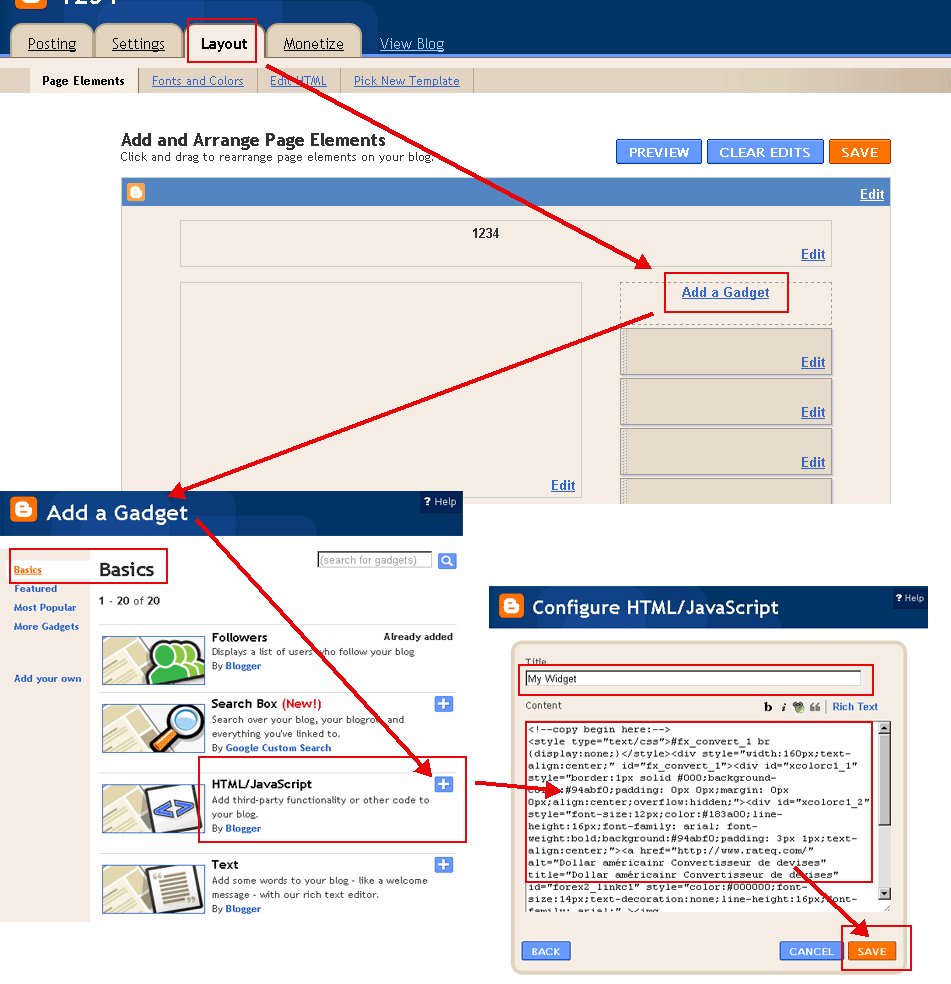
將以下程式碼,複製貼上到你的部落格或網站中, 就會在你的部落格中顯示即時匯率!
(請用HTML模式寫入部落格內容
WordPress範例
,
Blogger範例
)
選擇顏色(
?
):
字體顏色(
?
):
選擇日期格式:
5月 21日 2018 10:23:39 AM
21日 5月 2018 10:23:39 AM
5/21/2018 10:23:39 AM
21/5/2018 10:23:39 AM
2018/5/21 10:23:39 AM
2018-5-21 10:23:39 AM
5月 21日 2018 (一) 10:23:39 AM
21日 5月 2018 (一) 10:23:39 AM
5/21/2018 (一) 10:23:39 AM
21/5/2018 (一) 10:23:39 AM
2018/5/21 (一) 10:23:39 AM
2018-5-21 (一) 10:23:39 AM
2018年5月21日 (一) 10:23:39 AM
(一), 5月 21日 2018 10:23:39 AM
(一), 21日 5月 2018 10:23:39 AM
(一) 5月 21日 2018 10:23:39 AM
(一) 21日 5月 2018 10:23:39 AM
阿布賈 時間
複製到剪貼板
<!--copy begin here:--> <style type="text/css">#fx_convert_1 br {display:none;}</style><div style="width:210px;text-align:center;" id="fx_time_1"><div id="xcolorc1_1" style="border:1px solid #000;background-color:#94abf0;padding: 0px 0px;margin: 0px 0px;align:center;overflow:hidden;"><div id="xcolorc1_2" style="font-size:12px;color:#183a00;line-height:16px;font-family: arial; font-weight:bold;background:#94abf0;padding: 3px 1px;text-align:center;"><a href="http://tw.timeq.org/Abuja" alt="阿布賈 - Abuja 時間" title="阿布賈 - Abuja 時間" id="xtime_link1" style="color:#111111;font-size:14px;text-decoration:none;line-height:16px;font-family: arial;" >阿布賈 時間</a></div><div id="clocktwAbuja1" style="color:#111111;font-size: 1em;font-family: arial; font-weight:bold"></div><script src="http://tw.timeq.org/z.php?z=Etc/GMT+1&id=clocktwAbuja1&t=1"></script></div></div> <!--copy end here:-->
選擇顏色(
?
):
日曆月曆
<<
>>
日
一
二
三
四
五
六
日曆月曆|時間
複製到剪貼板
<!--copy begin here:--> <style type="text/css">#mort_cal_1 br {display:none;} #calendar123 td.onToday{color:#ff0000;}</style><div style="width: 160px;text-align:center;"><div style="border:1px solid #000;background-color:#fefefe;color:#333333;padding: 0px 0px;margin: 0px 0px;align:center;text-align:center;overflow:hidden;"><div id="xcolorcs1_1" style="font-size:12px;color:#173a00;line-height:16px;font-family: arial; font-weight:bold;background:#94abf0;padding: 3px 1px;text-align:center;"><a href="http://tw.timeq.org/" alt="日曆月曆|時間" title="日曆月曆|時間" id="gooddaycal_link" style="color:#000000;font-size:14px;text-decoration:none;line-height:16px;font-family: arial;" ><img src="http://tw.timeq.org/day.gif" border="0" style="margin:0;padding:0;border:0;" />日曆月曆</a> </div><DIV style="font-size:16px;"><DIV id=calendar123prev style="float:left;cursor:pointer;padding-left:5px;"><<</DIV><DIV id=calendar123next style="float:right;cursor:pointer;padding-right:5px;">>></DIV><SPAN id=calendar123year></SPAN> <SPAN id=calendar123month></SPAN> <TABLE cellSpacing=0 style="padding-left:12px;"><THEAD><TR><TD><font style='color:red;font-size:14px;'>日</font></TD><TD style='font-color:black;font-size:14px;'>一</TD><TD style='font-color:black;font-size:14px;'>二</TD><TD style='font-color:black;font-size:14px;'>三</TD style='font-color:black;font-size:14px;'><TD>四</TD><TD style='font-color:black;font-size:14px;'>五</TD><TD><font style='color:red;font-size:14px;'>六</font></TD></TR></THEAD><TBODY id=calendar123></TBODY></TABLE><INPUT id=calendar123prevyear type=button value='前年'><INPUT id=calendar123today type=button value='本月'><INPUT id=calendar123nextyear type=button value='明年'></DIV><script type="text/javascript" src="http://tw.timeq.org/z2.php"></script></div><a href="http://tw.timeq.org/" alt="日曆月曆|時間" title="日曆月曆|時間" id="gooddaycal_link2" style="font-size:12px;text-decoration:none;line-height:16px;font-family: arial;align:center;" >日曆月曆|時間</a></div> <!--copy end here:-->
阿布賈 - Abuja 相關資訊與新聞:
 日曆月曆
日曆月曆